Images
Images are bootable operating systems installed on your virtual machines. whitesky.cloud NV offers different types of images for VM/CDROM (ISO).
Supported Images
whitesky.cloud NV supports different types of images for several operating systems. The exact images available vary by location — check the VM images and CDROM images tabs in each location for the full list. Below are the OS families commonly available:
| OS Family | Example Versions |
|---|---|
| Ubuntu | Ubuntu Server 20.04, Ubuntu Server 22.04, Ubuntu Server 24.04, Ubuntu Desktop 20.04, Ubuntu Desktop 22.04 |
| Debian | Debian 11 (Bullseye), Debian 12 (Bookworm) |
| CentOS | CentOS 7, CentOS 8 Stream |
| Rocky Linux | Rocky Linux 8, Rocky Linux 9 |
| AlmaLinux | AlmaLinux 8, AlmaLinux 9 |
| RHEL | Red Hat Enterprise Linux 8, Red Hat Enterprise Linux 9 |
| Fedora | Fedora Server 38, Fedora Server 40 |
| openSUSE | openSUSE Leap 15.5, openSUSE Leap 15.6 |
| Windows | Windows Server 2019, Windows Server 2022, Windows 10 Pro, Windows 11 Pro |
| Flatcar | Flatcar Container Linux (latest stable) |
You can choose one of the images that the whitesky.cloud NV supports or create a new image that you can use in your virtual machines. Check create new image to find out how you can upload your own image.
Available Images
You can find all the available images for Virtual Machines and CDROMs in the Location section in the left side menu. Just click the desired location and you will be redirected to the list of available images
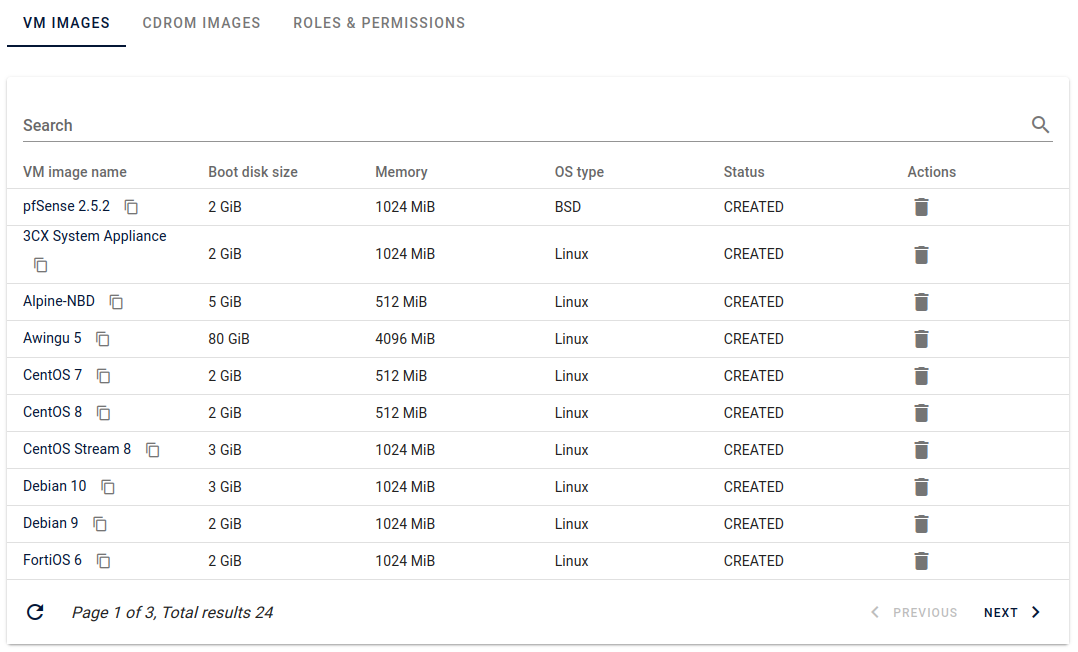
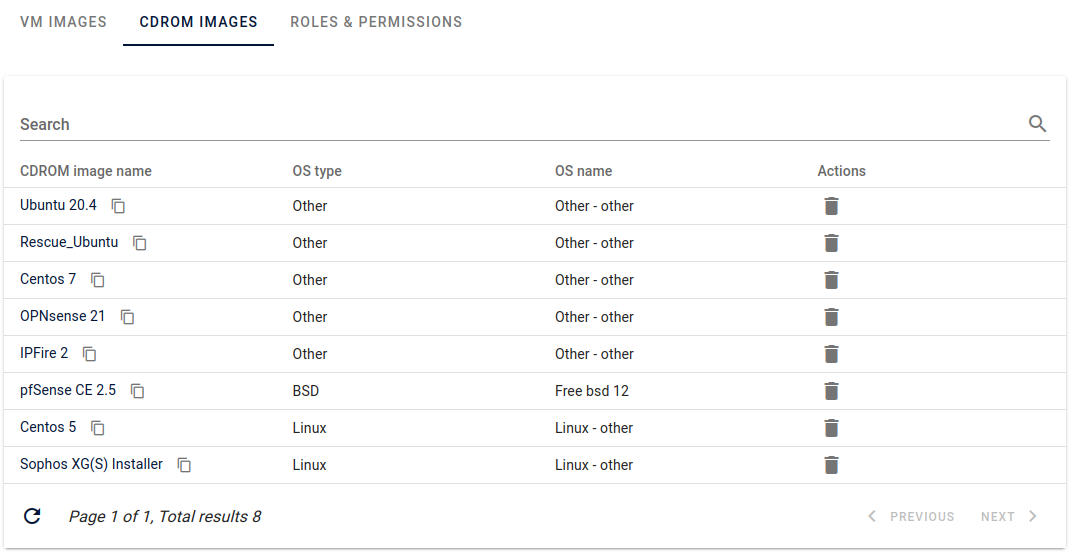
Tip
If you don't know what locations are and how can you use them, check the Locations documentation.
Create New Image
Both wizards are a few steps, ending in a choice of where the image data comes from.
-
For both Virtual Machines and CDROMS.
- Click ADD VIRTUAL MACHINE IMAGE at the top of the page.
- Configuration details: enter the Name, Boot Type, OS Type and OS Name.
- Memory & Boot disk size: configure your Memory (MiB) and Boot Disk Size (GiB). Memory must be a multiple of 128.
- Image source: choose Upload image from a URL or Upload image from a local file.
- Depending on your choice, enter the Image URL (must be publicly accessible) or select a file
(
.qcow2,.qcow,.raw,.vdi,.vmdk,.vhdx). - In the last step (Create Image), click ADD VIRTUAL MACHINE IMAGE and your VM image will be added to the list successfully.
- Click ADD CDROM IMAGE at the top of the page.
- Configuration details: enter the CD-ROM image name, OS Type and OS Name. CDROM images have no boot type, memory, or boot disk size — those only apply to VM images.
- CD-ROM source: choose Upload CD-ROM from a URL or Upload CD-ROM from a local file.
- Depending on your choice, enter the CD-ROM image URL or select a local
.isofile. - Click ADD CDROM IMAGE and your CDROM image will be added to the list successfully.
Tip
When adding a new VM/CDROM image it can take some time before an image is fully uploaded. The time taken depends on the size of the image and the speed between the location and the server which serves the upload URL.
Delete Image
If you want to delete a VM/CDROM image.
- Search for the VM/CDROM Image Name in the list
- Click to delete the image.
- Click Confirm to confirm this action.