Reset a Linux Root Password
If you have lost the root password for a Linux virtual machine, you can reset it from the VM console by interrupting the boot process. This does not require the old password, but it does require stopping the VM, so plan for a short outage.
The procedure has two parts: the portal steps below, which are the same for every distribution, and a set of console commands that differ per operating system.
Warning
Anyone who can reach a VM's console can reset its root password this way. Restrict console access through roles and permissions on production machines.
Reset the password
- Open the VM's details page.
- Click STOP and wait until the VM has stopped.
- Optional but recommended. Take a snapshot of the boot disk so you can roll back if something goes wrong. Snapshots belong to a disk rather than to the VM: open the Disks tab, open the boot disk, then create the snapshot from its Snapshots tab.
- Start the VM.
- Click CONSOLE while the VM is booting — you need the console open early enough to interrupt the bootloader, so open it immediately after starting.
- Follow the instructions for your operating system below to interrupt the boot process and set a new password.
- Restart the VM and log in with the new password to confirm it works.
- Optional. Delete the snapshot you took in step 3.
Operating system instructions
-
Press Esc to interrupt the boot process, then press E.
-
Add
rd.breakto the end of the line that starts withlinux($root)/.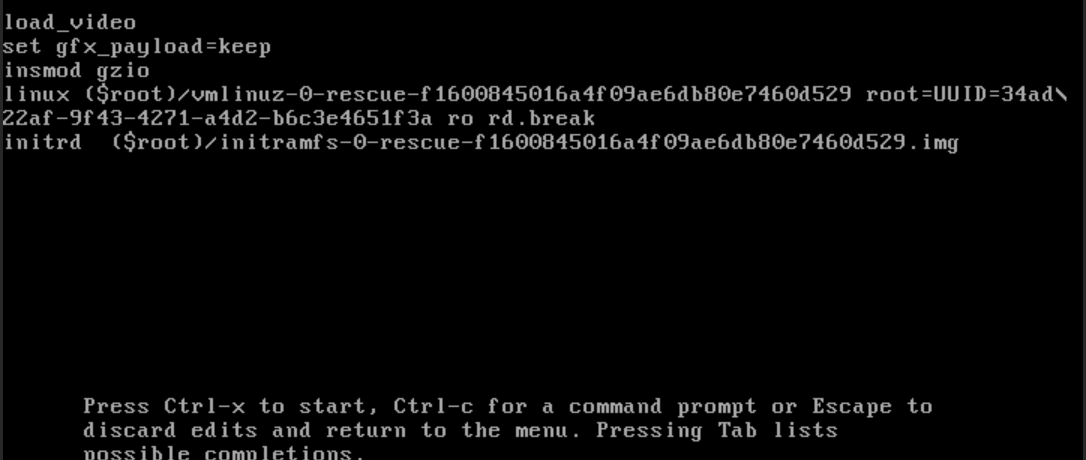
-
Press Ctrl+X to open a shell prompt, then run:
touch /.autorelabeltells SELinux to relabel the filesystem on the next boot. Without it, the changed password file keeps the wrong security context and login fails.
-
Press Shift or Esc repeatedly until the boot process is interrupted, then press E.
-
On the line that starts with
linux /vmlinuz-, replace everything afterrowithrw init=/bin/bash.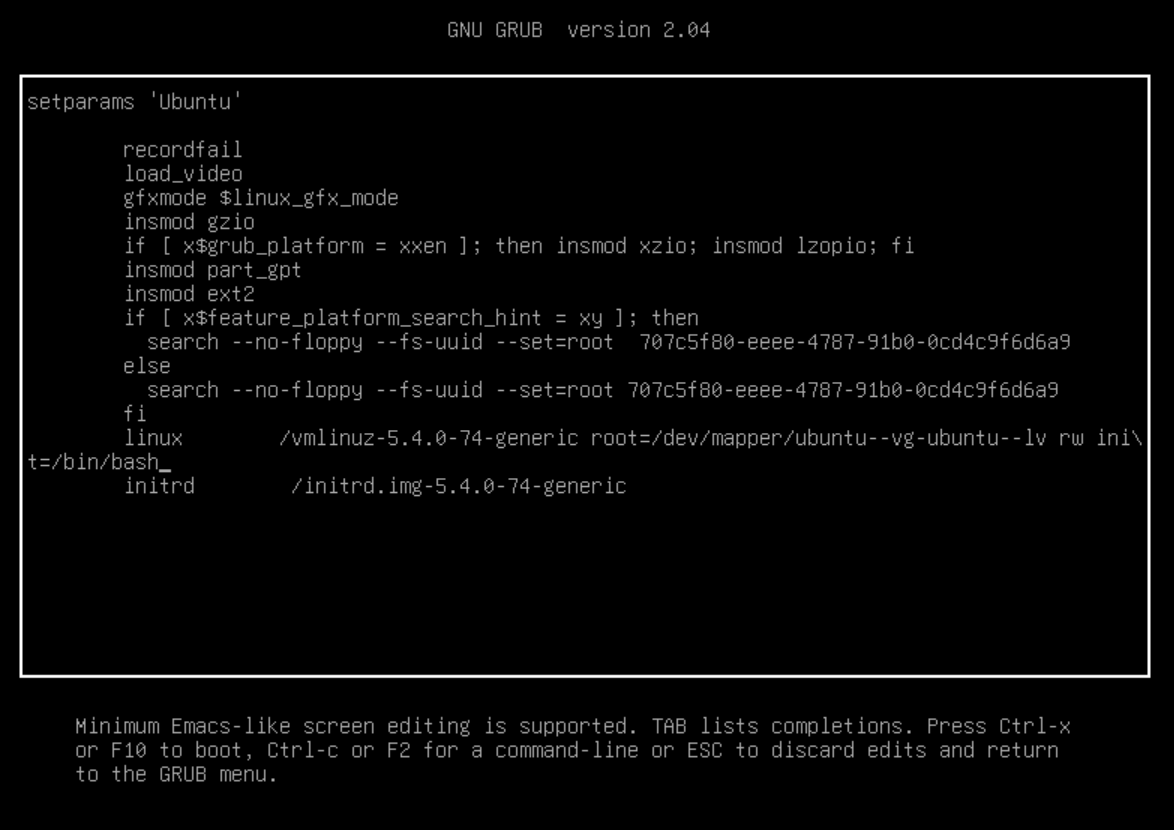
-
Press Ctrl+X to open a shell prompt, then run:
exec /sbin/initresumes a normal boot without rebooting, so the new password takes effect immediately.